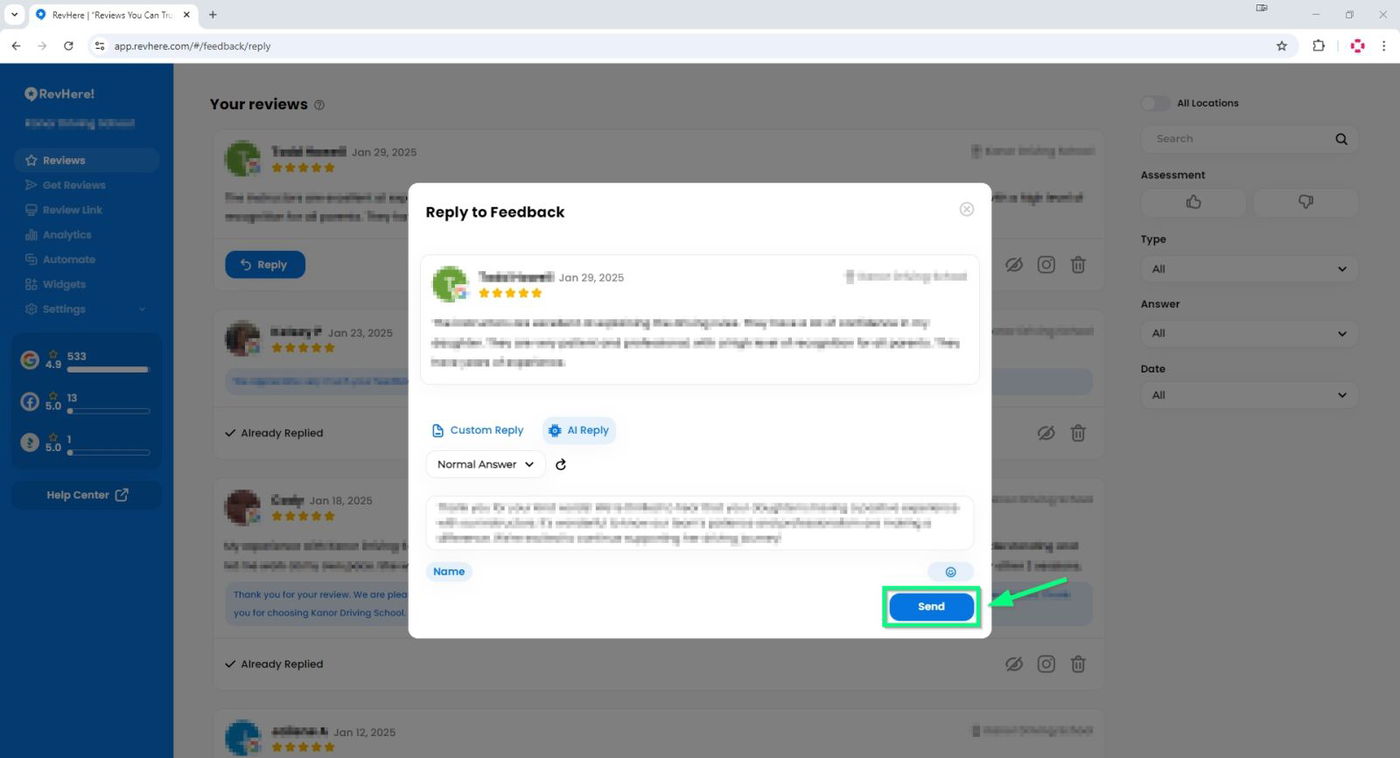
Responding to reviews is a great way to engage with customers and manage your online reputation. This guide will walk you through how to reply to reviews directly from the platform.
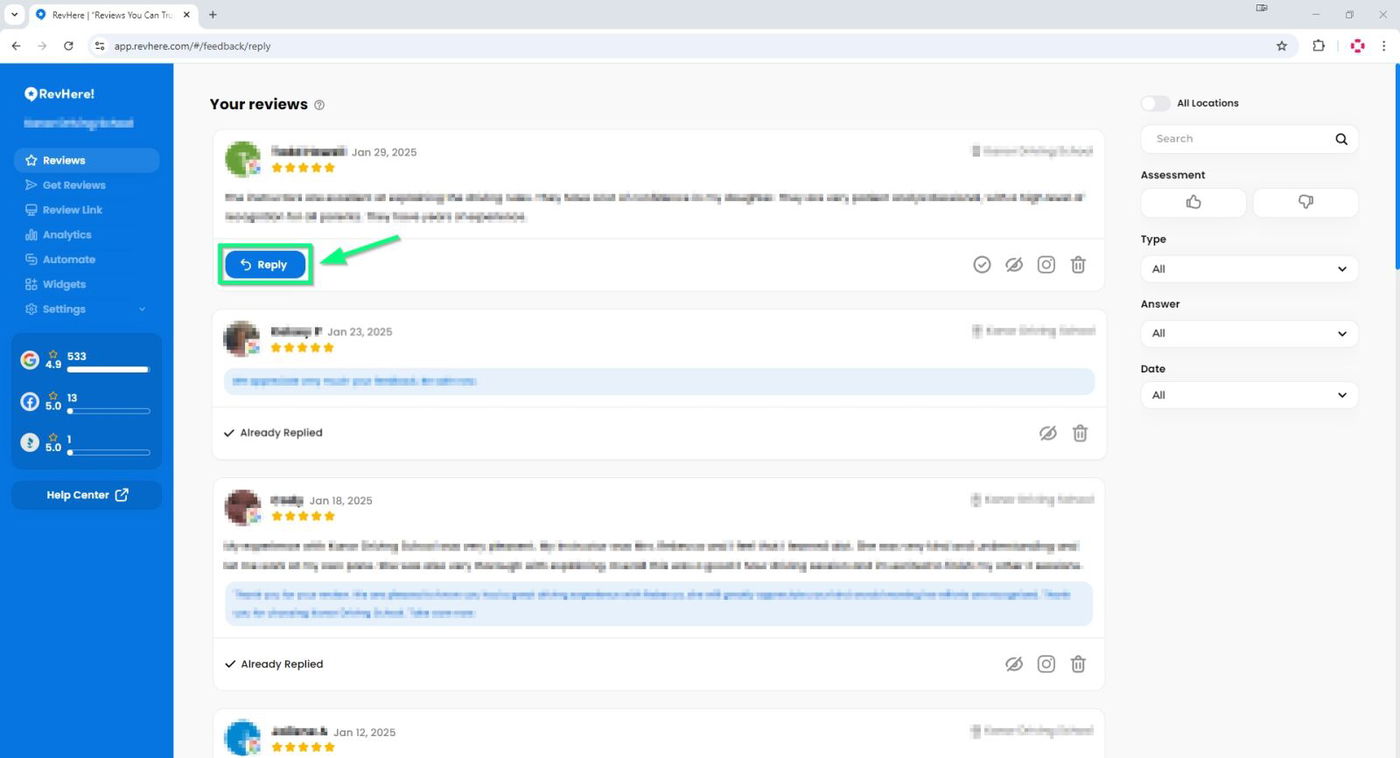
To respond to a review, simply click "Reply" under the review.
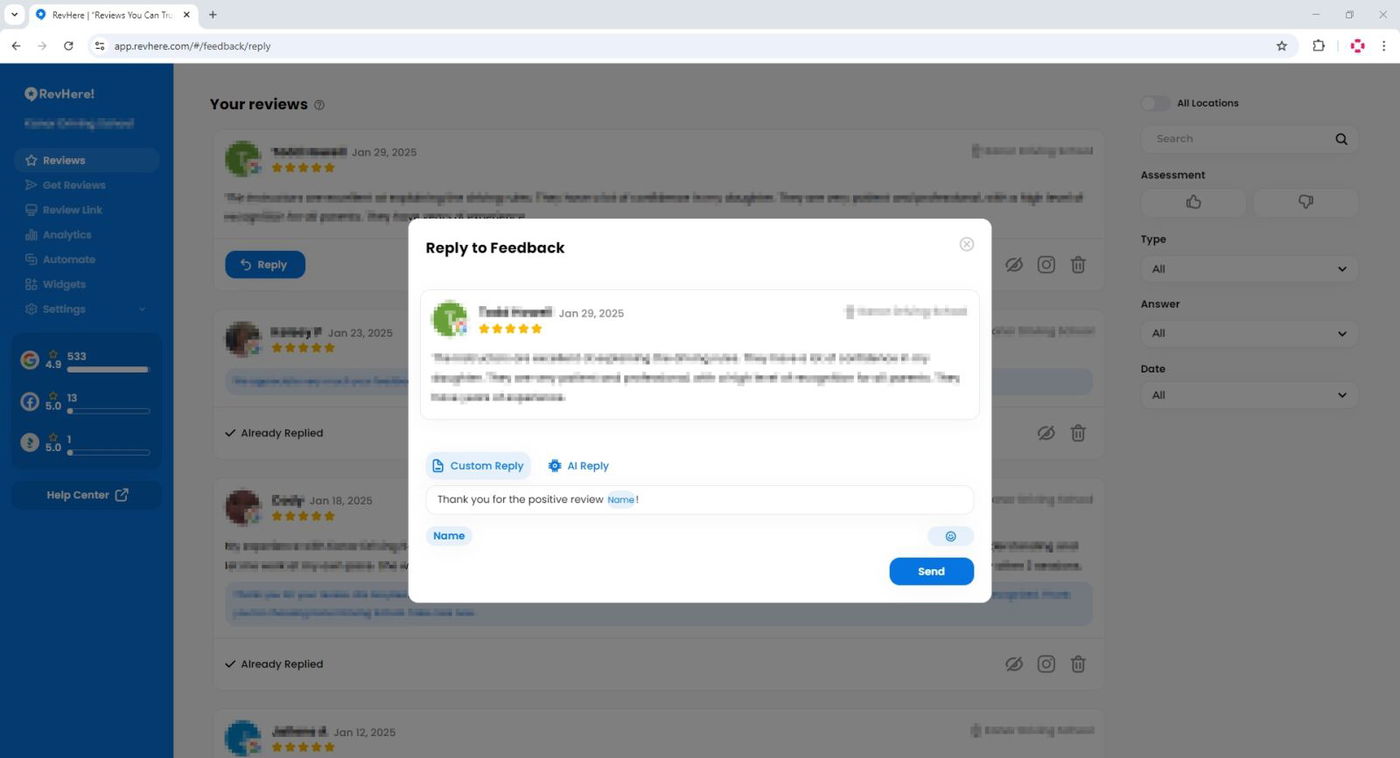
This will open a pop-up window where you can type your response and engage with your customers directly.
You can choose to create a Custom Reply by selecting the "Custom Reply" option and typing your own response.
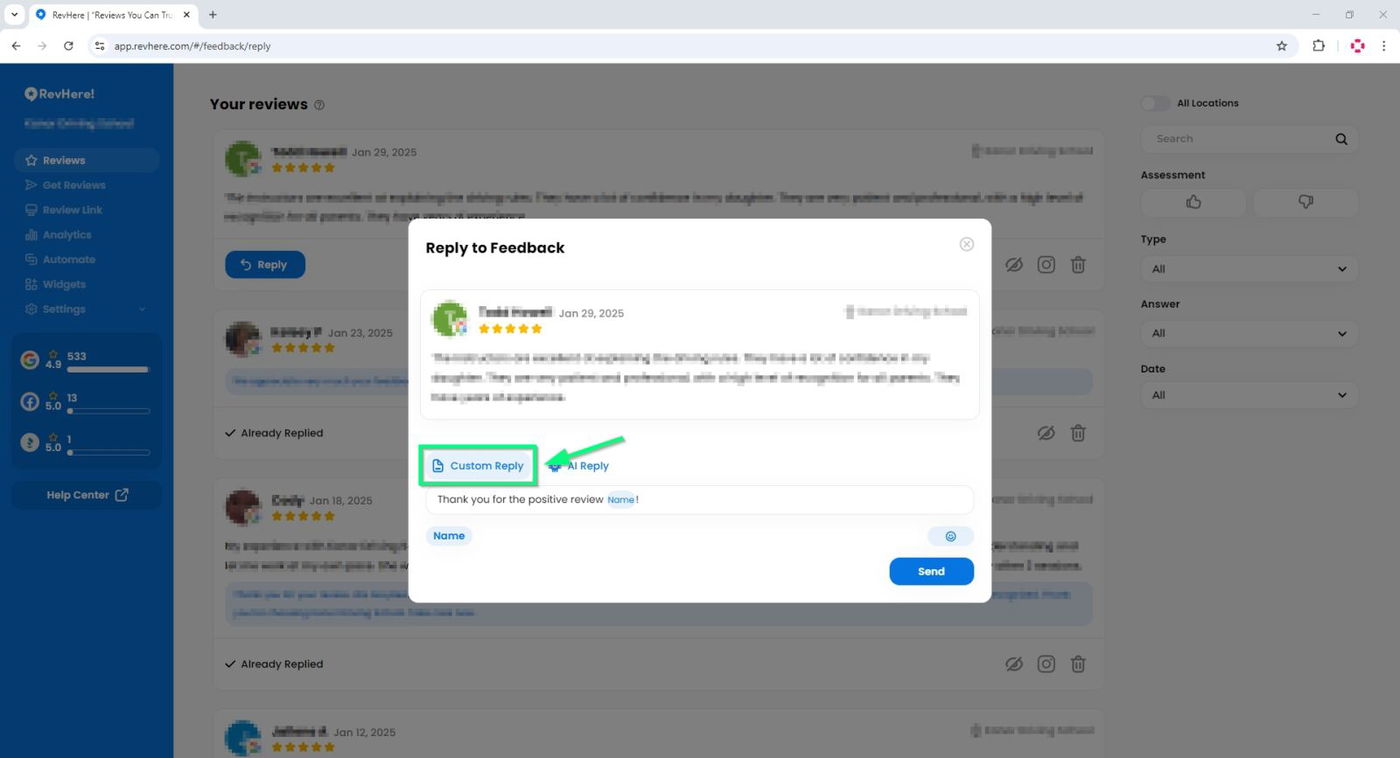
You can choose to create a Custom Reply by selecting the "Custom Reply" option and typing your own response. Alternatively, you can select "AI Reply" to have the AI generate a response for you.
AI Reply
We use the latest AI technology to generate responses for your reviews, helping you save time. After clicking "Reply" on a review, just select "AI Reply", and the platform will automatically generate a response for you.
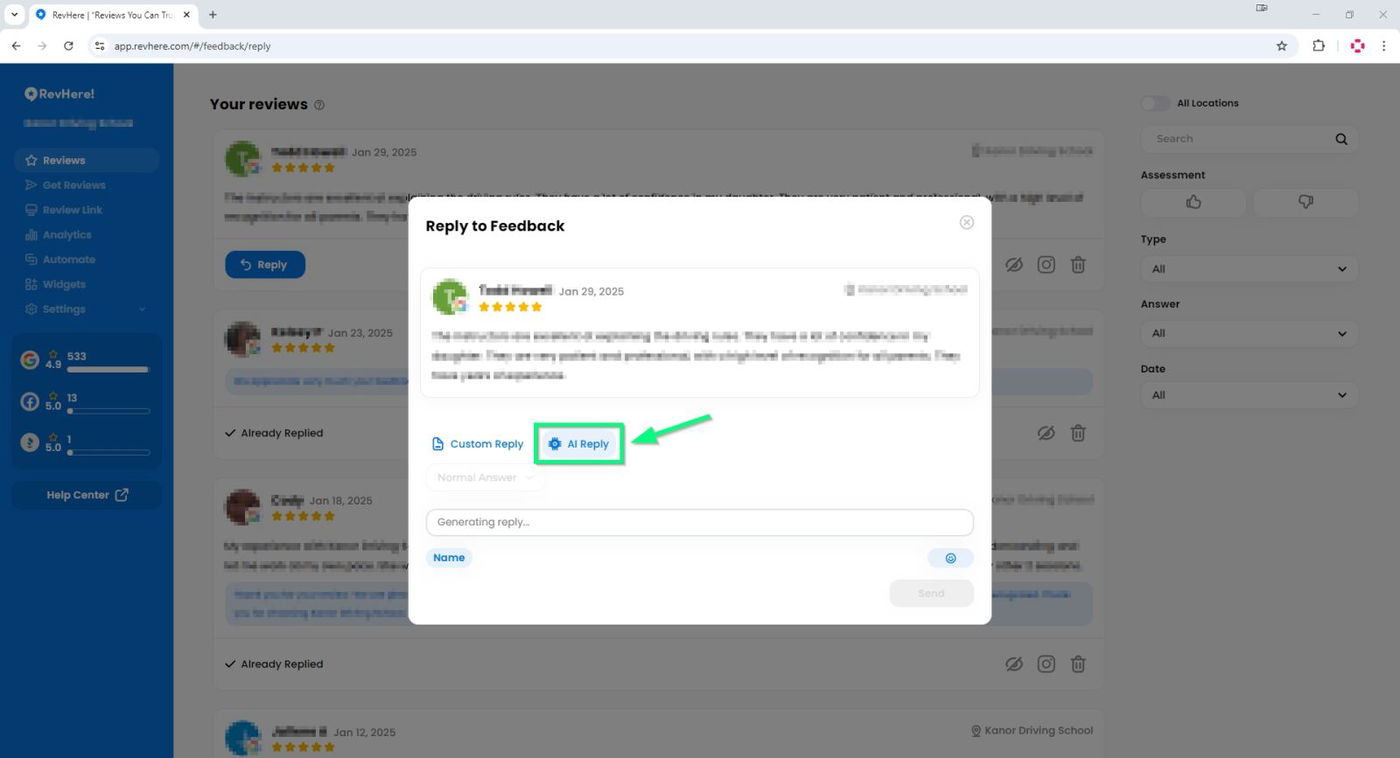
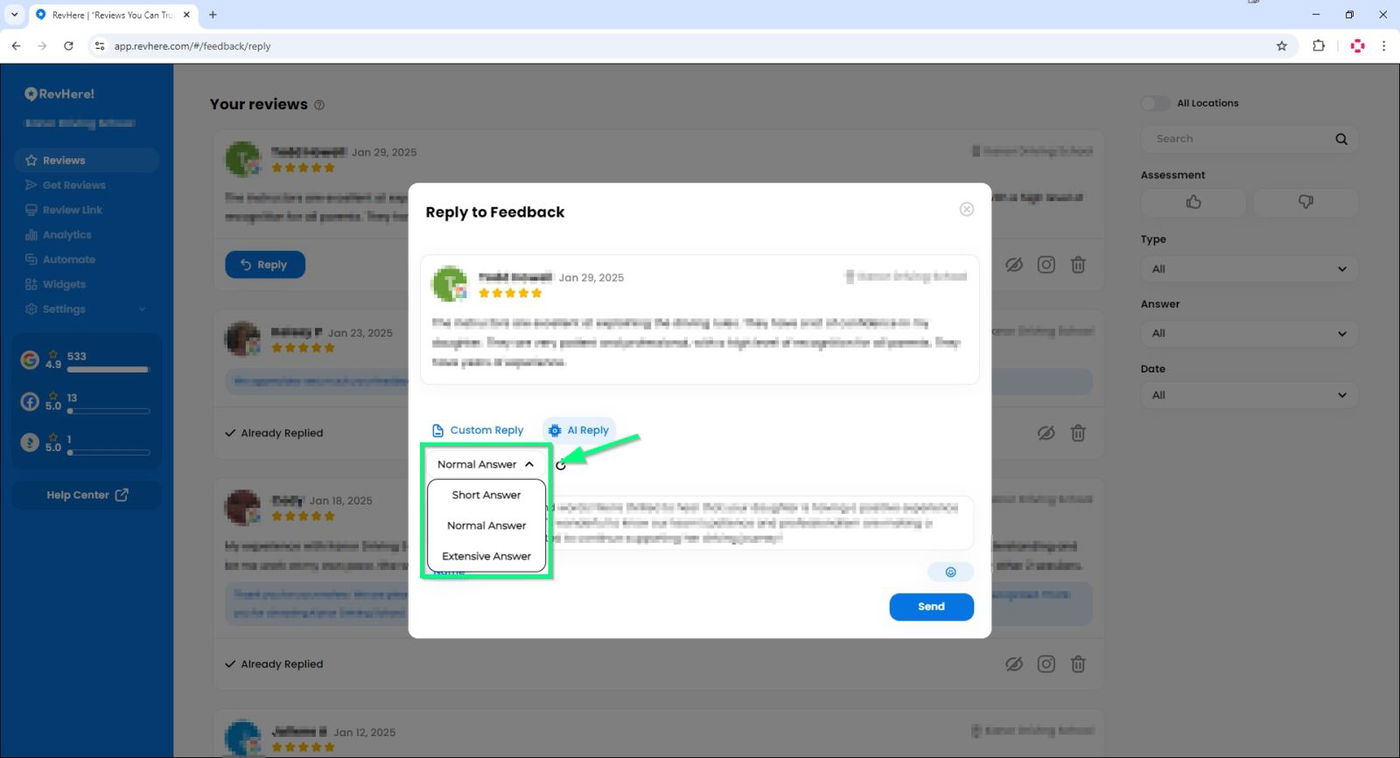
After clicking "AI Reply", you can choose from three types of AI-generated responses:
- Short Answer – A brief and concise response.
- Normal Answer – A well-balanced and standard-length reply.
- Extensive Answer – A more detailed and comprehensive response.
Simply select the desired reply type, and the platform will generate a response accordingly.
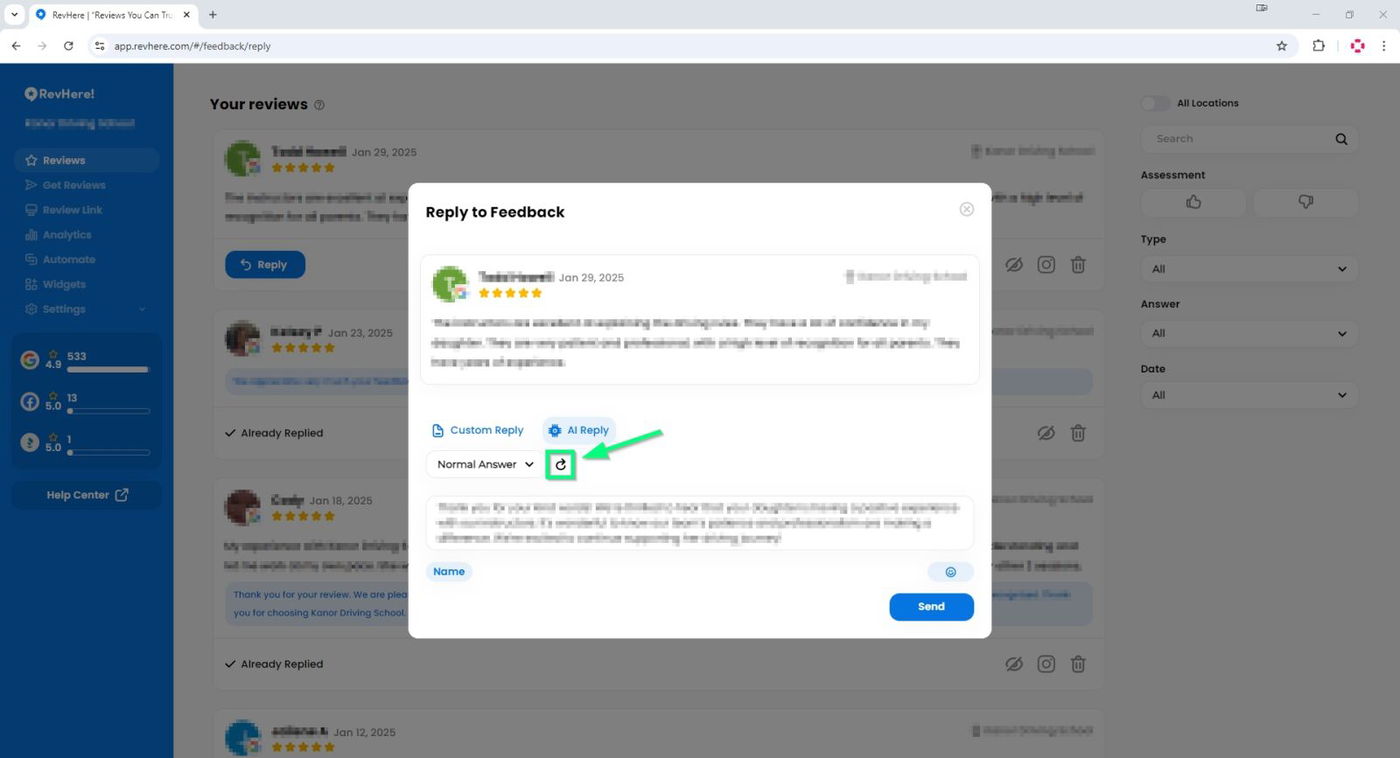
If you want AI to generate a new response, simply click the small "reload" button.
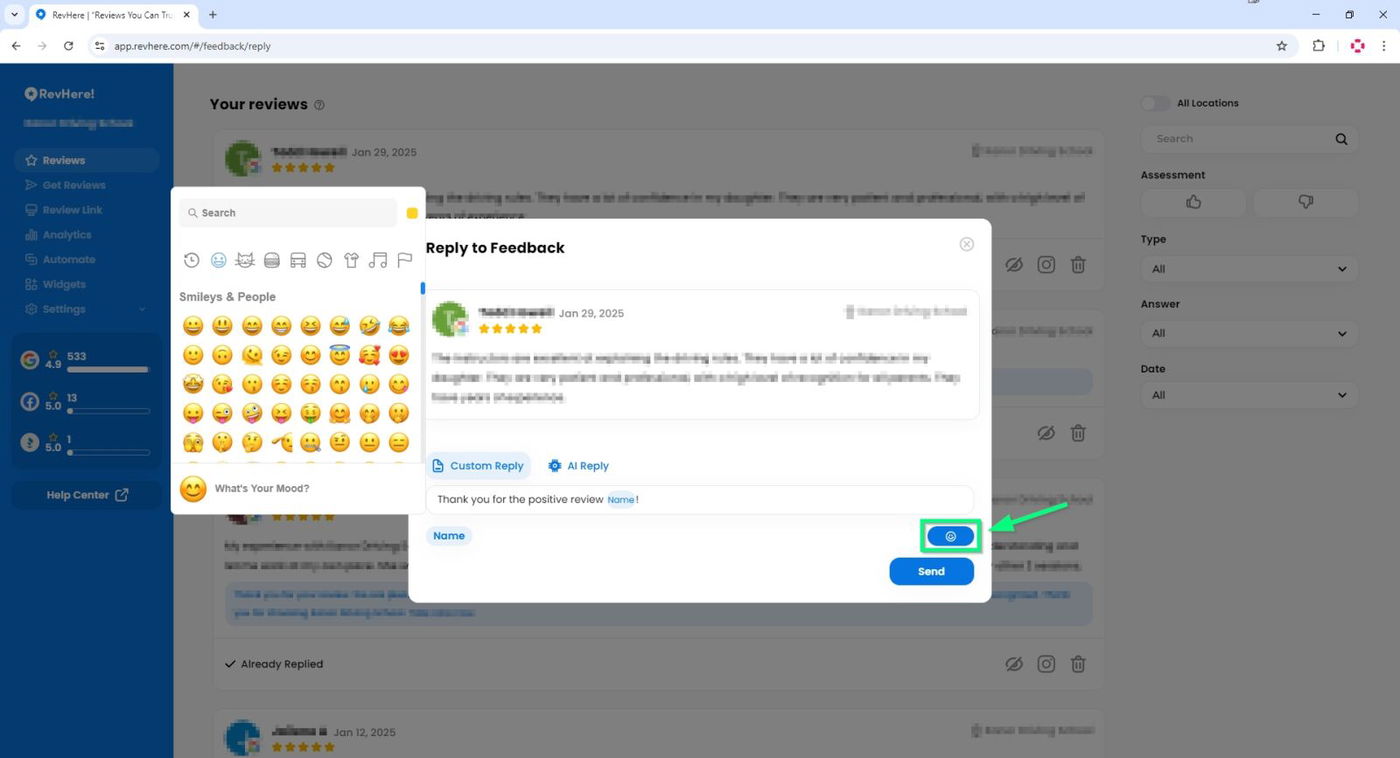
You can also add emojis to your response by clicking the emoji button. This allows you to personalize your replies and make them more engaging. 😊
Once you've typed or generated your reply, you can send it by clicking the "Send" button. This will post your response to the review. 🚀